Digital files files exist in a folder – of course!
Print winners have uploaded their photographs
Step 1 – Create the empty Post (aka page)
Visit the most recent Post to use as a template
Enter Edit mode
Copy all of this Post
Dashboard -> Posts -> Add New
<Year> <Month in 3 letters> Competition Results
Paste in the template page
Delete all of the thumbnails, text, gallery – leaving an formatted, yet mostly empty page
Set the Post publication date to the date of the competition
Publish/update
Step 2 – Add the winners
Edit the page to list the 12 new winning photographs
Step 3 – Verify the files are OK
Use Dashboard -> Media
Search for
The Digital competition files and the Print winner files are stored in the same web folder. The folder name is public_html/wp-content/uploads/competition/<Year>-<Month>
The web software automatically creates smaller versions, maintaining the aspect ratio:
125×125 – thumbnails in competition pages
1024×1024 – used in Gallery and good for low-res competitions
1920×1080 – used in high-res competitions
Correct the naming of any files with non-normal characters (should not be needed!)
No quote or back quote marks: ’ ” “ ” ‘
No em dashes (long dashes): –
Change .jpeg files to .jpg
Use the “Rename now” functionality. Note, 99% of the time you need to click on the “modify the title” link to fix the issues
Step 4 – Add thumbnails to Competition Results Post
For each thumbnail
Click the Add Media button
Search for the photograph
Insert 175×175 thumbnail, link to nothing
Step 5 – Insert a gallery at the bottom of the page
Wait until Step 4 is finished!
NextGEN Gallery -> Add Gallery
Upload images
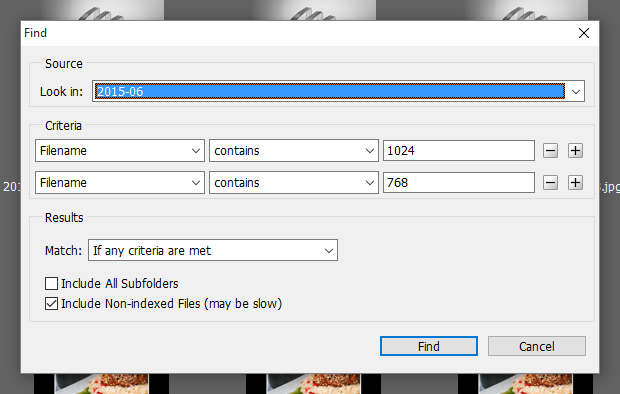
In Adobe Bridge view Albums\Photography Club\Website\Competition\<Year>=<Month>
Edit -> Find … Filename | contains | 1024 or 768
Select All (CTRL-a), then Label -> Select, or type”6″ key, “Red” label should appear on all photos
Close search, view all photos
Visually search for groups of photos that do not have the Red label. Hint, try using a window that has 4 thumbnails across. Generally this means the uploaded resolution is less than 1024. Add missing files use Label -> Select
Drag and drop these to the Add Files area in Add Gallery / Images